On this page
Before you start
- Web Quick Start completed
- Chrome desktop
Step by step
- Open chrome://extensions.
- Turn on Developer mode.
- Choose Load unpacked and select the extension folder.
- Sign in to the extension.
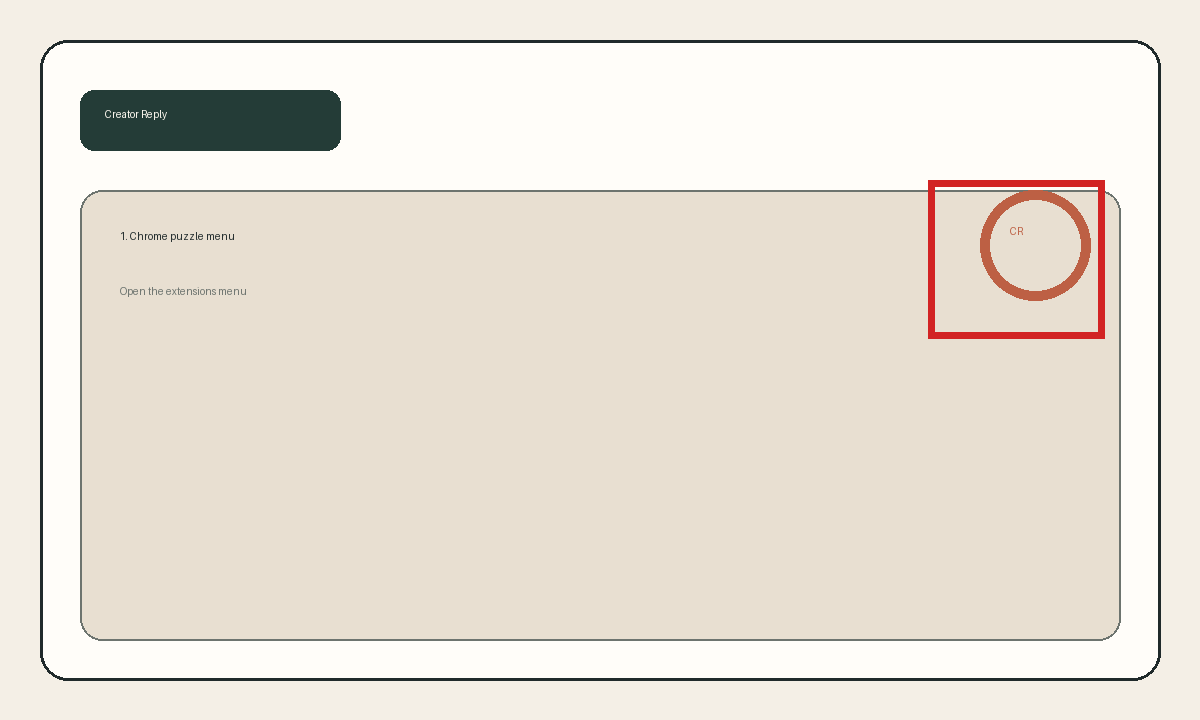
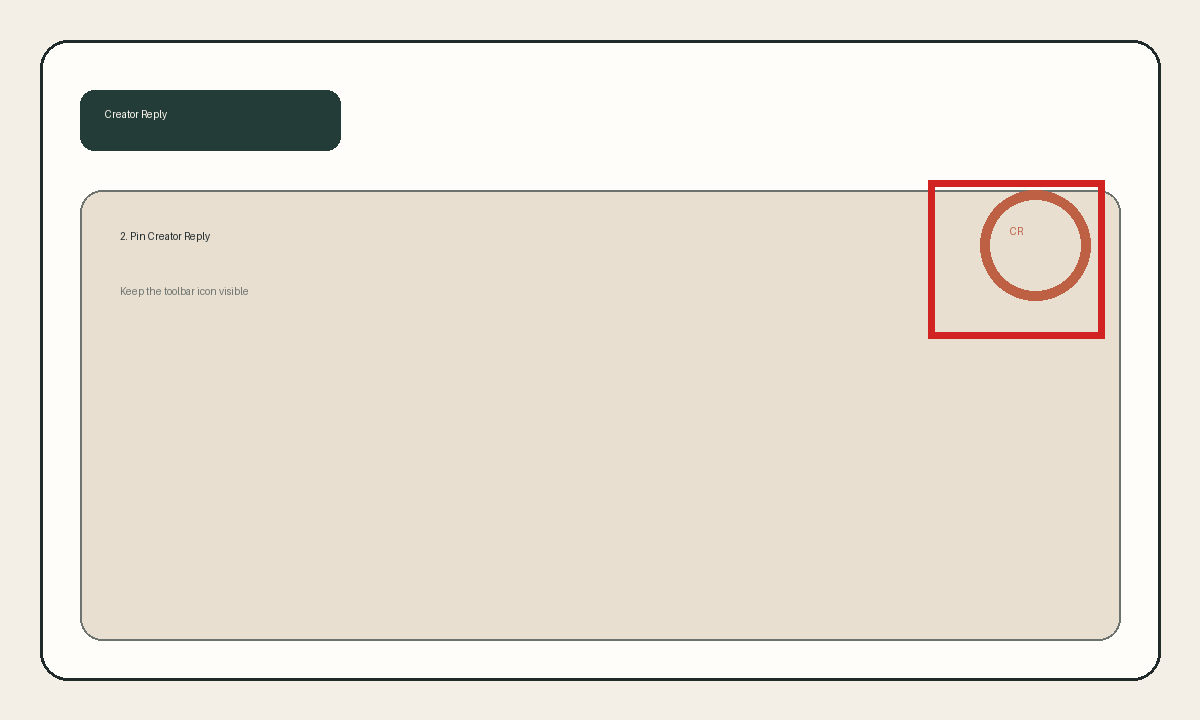
- Use the Chrome puzzle menu to pin Creator Reply.
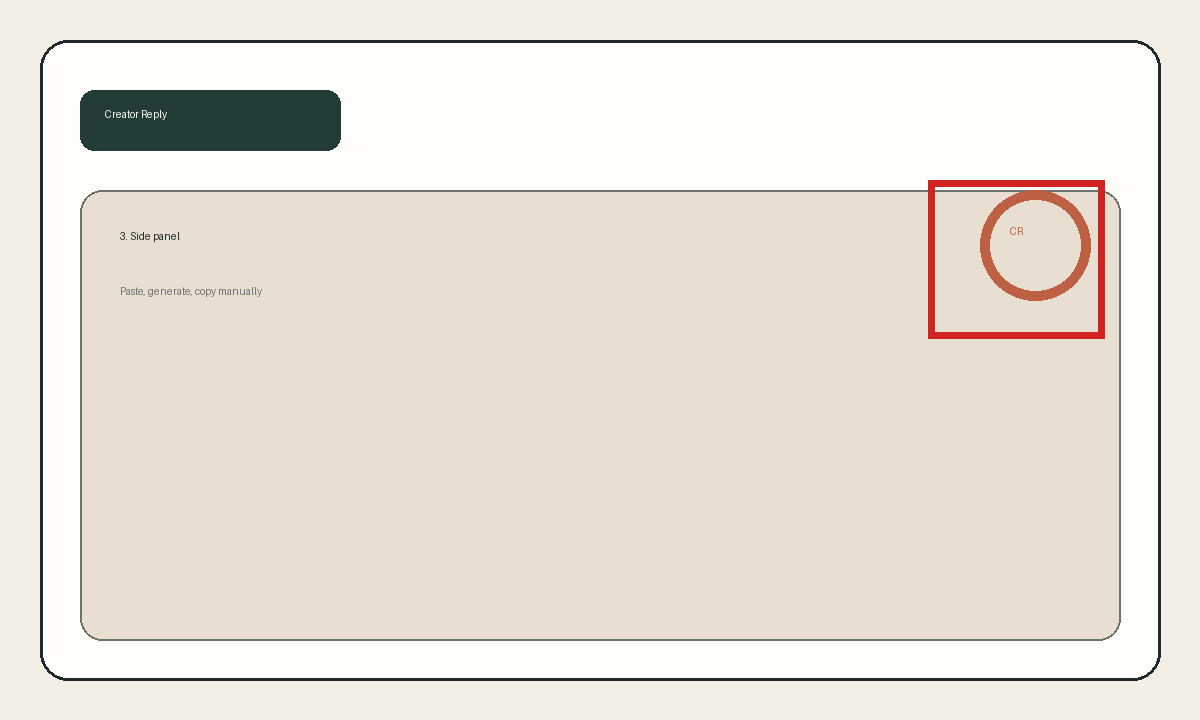
- Click the toolbar icon to open the side panel.
Product screenshots
Good to know
- The extension is optional. Complete Web Quick Start first if you prefer.
Recovery path
Protect the conversation first, then choose one next action. Do not retry by pasting more personal data.
- Side panel will not open while the extension is disabled.
- An unsupported browser uses the Web Composer fallback.
- The extension never requires host permission.
Privacy and safety
The Alpha boundary is visible on every step: manual review, manual copy, and manual send.
No DOM read, no automatic draft injection, and no auto-send.
- No platform password or cookie
- No platform DOM reading
- Nothing is sent automatically
- Memory can be disabled or deleted